Transfer everything from old computer to new computer with Windows 11
Transfer programs and files to new computer
Transfer files from one computer to another
Research data: Windows and migration statistics
Transfer Microsoft Office to new computer
Restore programs and files from a broken or dead computer
Transfer directly from an old hard drive
Transfer to new computer using a USB hard drive
Corporate Windows 11 migration
User Profile Migration to new PC / new domain
How To Migrate Local Profiles to Azure AD
Migration to Server 2019 / 2016
Transfer everything from old computer to new computer with Windows 11
Transfer programs and files to new computer
Transfer files from one computer to another
Research data: Windows and migration statistics
Transfer Microsoft Office to new computer
Restore programs and files from a broken or dead computer
Transfer directly from an old hard drive
Transfer to new computer using a USB hard drive
Corporate Windows 11 migration
User Profile Migration to new PC / new domain
How To Migrate Local Profiles to Azure AD
Migration to Server 2019 / 2016
Transfer programs and files to new computer
Transfer files from one computer to another
Transfer Microsoft Office to new computer
Restore programs and files from a broken or dead computer
Transfer directly from an old hard drive
Transfer to new computer using a USB hard drive
Move To New PC - Compare Options
Migration Kit Pro - Advanced Transfer
Transfer programs and files to new computer
Transfer files from one computer to another
Transfer Microsoft Office to new computer
Restore programs and files from a broken or dead computer
Transfer directly from an old hard drive
Transfer to new computer using a USB hard drive

Updated November 2026 · 4 minute read
How to Transfer Passwords to a New Computer (Chrome, Outlook, Email, Accounts)

Getting a new computer – and worried about your passwords? You are not alone: it is one of the most common questions people ask before a transfer. Your saved passwords live in more places than most of us remember – Chrome passwords and Internet passwords for websites, email passwords in Outlook or Thunderbird, sign-ins remembered by your applications, and everything your browser fills in for you automatically.
This guide shows how to transfer your passwords to the new computer – both the manual ways (browser by browser, program by program) and the automatic way that moves all of them at once. If you’d like to skip straight to the easier, automatic option, click here for transferring all your passwords to the new computer automatically.
Will my passwords be lost when I move to a new computer?
Not if you move them properly. The tricky part is that there is no single “passwords folder” in Windows: every browser and every program keeps its own password store, and many of those stores are encrypted so that simply copying the files to another computer does not carry the passwords along. That is why passwords need to be transferred, not just copied – here is what that takes for each store.
Moving passwords manually – store by store
- Chrome passwords: sign in to Chrome with your Google account and turn on sync – your passwords follow you to the new computer (full guide: how to transfer Chrome to a new computer). Don’t use a Google account? Chrome can export passwords to a CSV file from its password manager settings, which you then import on the new computer. Careful: that CSV is plain, readable text – anyone who opens the file sees every password you have. Delete it properly when done.
- Edge passwords: same idea – sign in with your Microsoft account to sync, or export to a CSV file with the same caveat.
- Firefox passwords: Firefox keeps passwords inside its profile folder, so a profile copy moves them – see our guide on transferring your entire Firefox profile to a new computer.
- Email passwords (Outlook): Outlook does not export account passwords. On the new computer, you re-create each email account and re-enter its password by hand – and if you don’t remember a password, you will be resetting it with the email provider before you can even finish the setup.
- Thunderbird: stores passwords in its profile – see moving your Thunderbird profile to a new computer.
- WiFi passwords: Windows offers no friendly way to export them. In practice, you re-enter the WiFi password on the new computer – it is usually printed on a sticker on your router.
- Passwords inside your programs: sign-ins remembered by your applications – accounting software, license activations, saved sessions – generally cannot be exported at all. Manually, they are re-entered one program at a time, after you reinstall each program.
See the pattern? Every store has to be handled separately, some cannot be exported at all – and a manual move is exactly how you find out which passwords you actually remember. Doable? Partially. Easy? Not at all.
The automatic way: transfer all your passwords at once
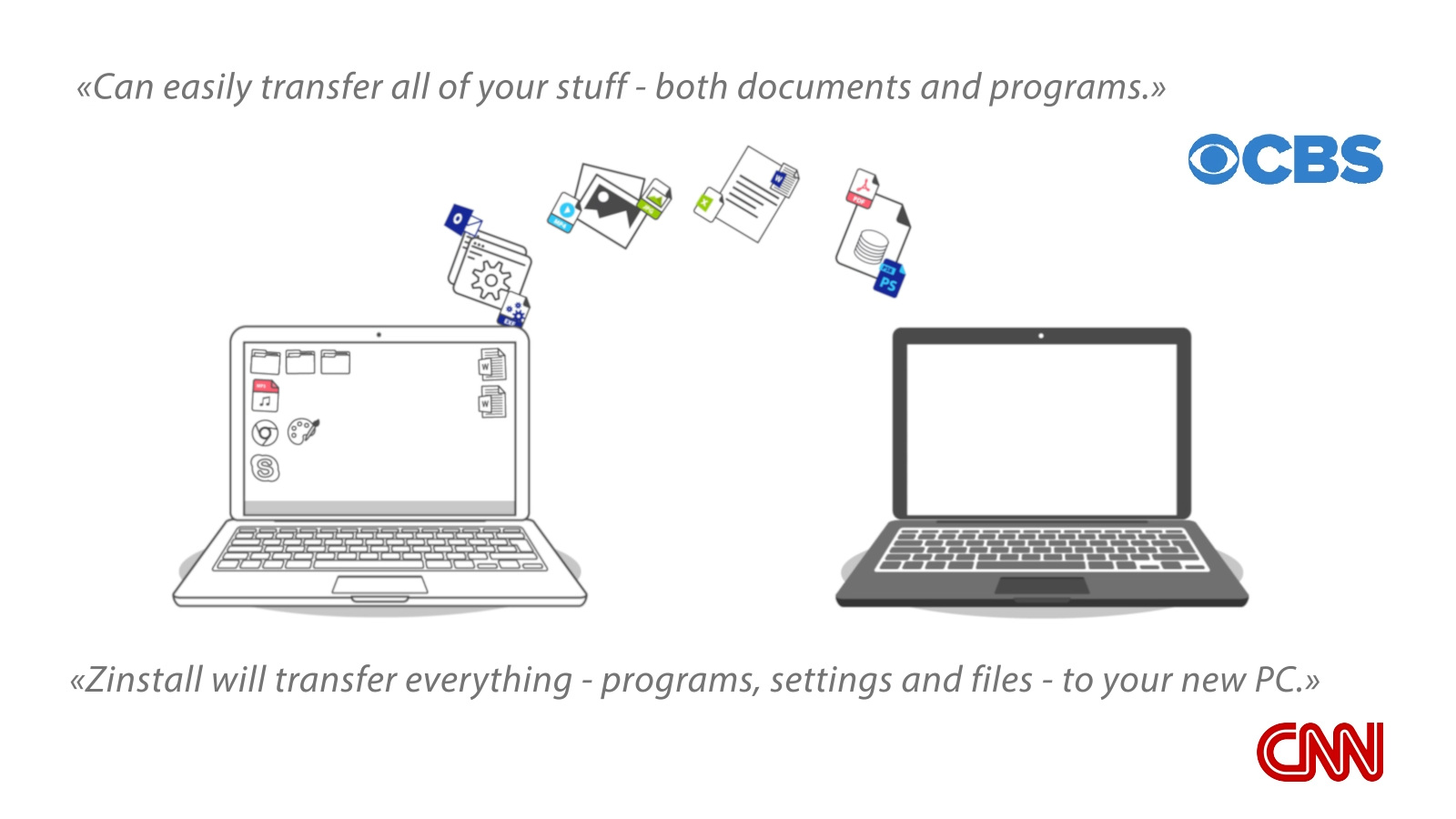
The easiest way to transfer your passwords to a new computer is to use a dedicated transfer tool – Zinstall WinWin – which transfers them all in one go.
Your browsers arrive with their saved passwords in place – Chrome and Firefox included – along with favorites and bookmarks and autofill. Your email program arrives already set up, accounts and all. Your applications come over installed, with their settings, sign-ins and license keys. And of course, your profiles, personalization and all of your files come along as well.
No CSV exports, no re-entering, no “forgot password” resets – the new computer simply signs in the way the old one did.
How to transfer your passwords to the new computer
- Run Zinstall WinWin on your current computer (the one you are transferring from).
Note: You can get Zinstall WinWin here. - Run Zinstall WinWin on the new computer
- You don’t need to do any configurations for the computers to connect – it’s automatic
- If the computers are already connect to same router, same Internet connection, or same wireless connection, you don’t need anything else
- If the computers are not connected at all, connect them with a network / Ethernet cable
- If you’d like to select which applications and files you want to transfer, press the Advanced menu. If you just want to transfer everything, you don’t need to go to the Advanced menu.
- Press “Go” on the Windows 11 or Windows 10 computer to start the transfer
That’s it!
Once the transfer is done, your passwords will be right where you expect them – in your browser, in your email, in your programs – just like on the old computer. And it is not just passwords – see how to transfer everything to a new computer with Windows 11 for the full picture.
The new computer will feel just like home.
Ready to transfer your passwords - and everything else - to your new computer?
Video tutorial – how to transfer everything from one computer to another
Related Guides
guaranteeAny PC, any Windows Buy now