
Clone or Transfer? Why Cloning a Drive to a New PC Breaks, and What to Do Instead
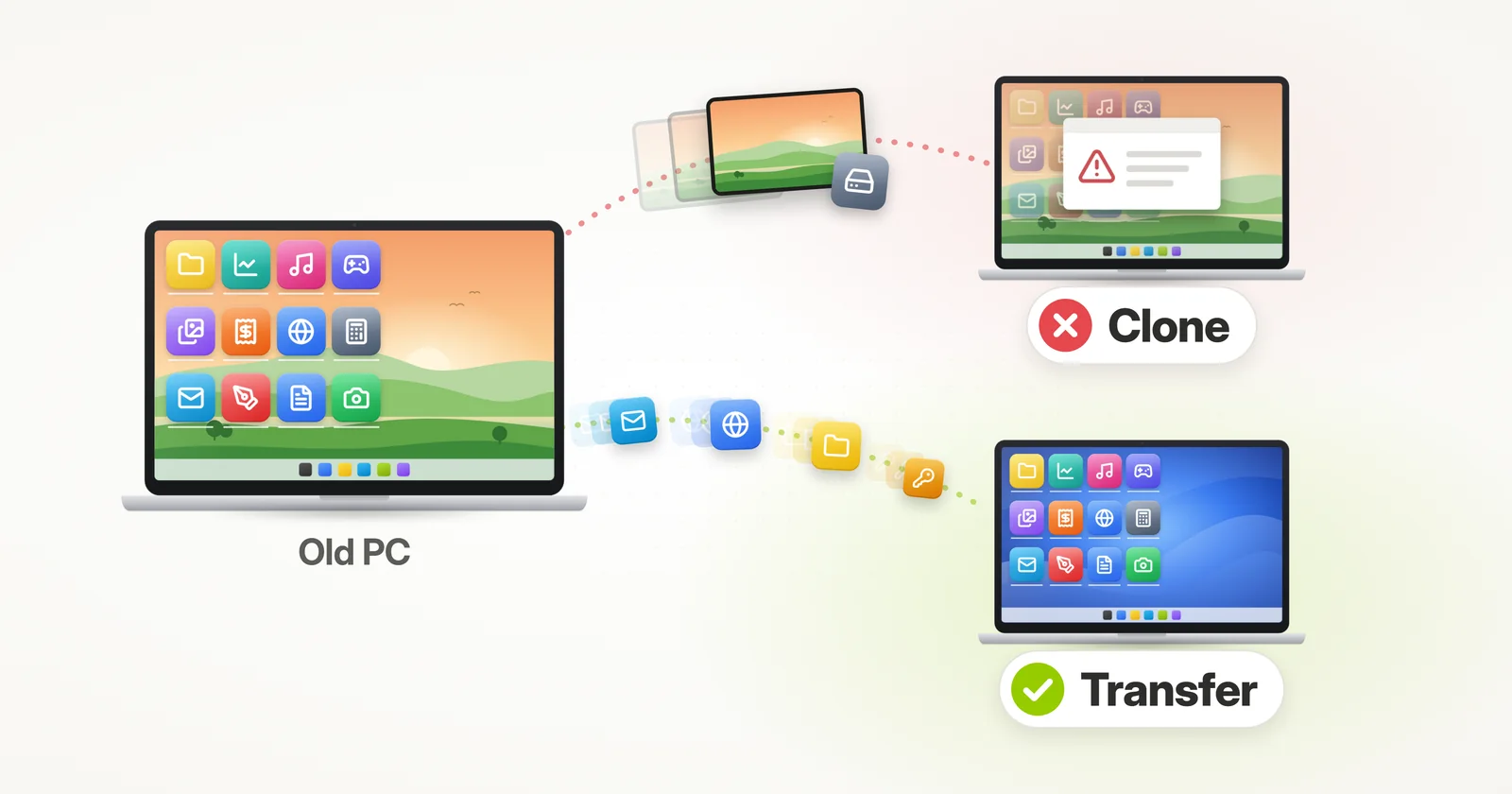
Got a new computer, and want it to be just like the old one, with all your programs, settings, accounts and files? The word most people reach for is “clone”. Or, if you have been around computers for a while, “ghosting” the PC.
It sounds like the obvious way to do it: copy the whole drive, tower to tower or laptop to laptop, and the new computer becomes the old one. But when the new computer is a different machine, a drive clone also brings along the one thing you don’t want – the old Windows – and that is where things break.
This guide answers the questions people ask most about cloning a computer, and shows how to get the result you are really after without cloning. If you prefer to just skip to the easier, automatic option, you can click here for the automatic transfer that replaces cloning.
Can I clone my old computer to a new computer?
Short answer: you can copy the hard drive, but on a different computer the clone often breaks. It brings the old Windows along, with drivers and activation made for the old hardware, and it overwrites the Windows the new computer came with. To make a new PC just like the old one, transfer your programs, settings and files onto its own Windows instead.
What does it mean to clone or ghost a computer?
Cloning a computer means making a complete copy of its drive. Everything on the old drive lands on the new one, as is: your files and programs – but also the old Windows itself, with the drivers, activation and settings that belong to the old computer’s hardware.
“Ghosting” is the same idea. The name comes from Ghost, the disk imaging software (sold as Norton Ghost to home users) that IT departments used for years to copy one computer’s drive onto many others.
And a clone does not merge anything. It replaces whatever was on the target drive – which, on a new computer, is the Windows that came with it, set up by the manufacturer for that exact hardware.
Can I clone a computer to different hardware?
Not reliably. Windows is set up for the hardware it was installed on, so a clone moved to a different computer may not start, runs with the wrong drivers, can lose its activation – and wipes out the Windows the new computer came with.
- It may not start. The cloned Windows can stop with a blue screen before you ever see the desktop.
- Wrong drivers. Windows carries drivers for hardware that isn’t there anymore, and lacks the ones the new computer needs: graphics, network, sound, touchpad, plus the manufacturer’s own tools.
- Activation. The old Windows license may not be valid on the new hardware.
- The new computer’s own Windows is gone. It came with its own activated, up-to-date Windows and the right drivers. The clone overwrites all of that – including the newer Windows version you may have bought the computer for.
Sometimes a clone does start up fine on new hardware – Windows has gotten better at adapting – but you are still running the old computer’s Windows, leftovers and all, on a machine it was never set up for.
Will a cloned drive boot on a new computer?
Sometimes, but it is a gamble. A cloned Windows expects the old computer’s disk controller and chipset. If the new computer’s are different enough, it stops with a blue screen – often “INACCESSIBLE_BOOT_DEVICE” – instead of starting.
And when it does boot, the work isn’t over: you are tracking down drivers for the new hardware one device at a time, and clearing out the old computer’s tools.
Will Windows stay activated if I clone it to a new PC?
Often not. Windows licenses are matched to the device: in Microsoft’s own words, after significant hardware changes “Windows will no longer find a license that matches your device.” A whole new computer is as significant as hardware changes get.
And if the old Windows came preinstalled, its license goes with the old computer, not the new one. Meanwhile, the new computer’s own Windows – already activated for that hardware – is exactly what the clone overwrites.
Does Microsoft support cloning Windows to another computer?
Not as a plain drive copy. Microsoft’s policy for duplicating a Windows installation requires preparing it with Sysprep before the copy is made (see Microsoft’s disk duplication policy). Sysprep strips out the computer-specific parts, installed drivers included.
IT departments that image computers build a clean, prepared image for the purpose, and then move each user’s profile and data separately (with tools like USMT, which moves user profiles but not programs). A plain clone of the drive you use every day skips all of that.
When should I clone a drive instead of transferring?
When the hardware stays the same. The classic case is swapping the drive inside the same computer – for example, replacing an old hard drive with a faster SSD. Same computer, same hardware: the cloned Windows feels right at home.
When you move to a new computer, though, the hardware is exactly what changes – and that is where a transfer is the right tool.
What is the difference between cloning and transferring to a new computer?
A clone copies the whole drive, Windows included, and replaces whatever was on the new computer. A transfer moves your programs, settings, accounts and files onto the new computer’s own Windows, and leaves its Windows, drivers and activation as they are.
In other words, a clone makes the new computer’s drive a copy of the old one; a transfer makes the new computer feel like the old one – which is what most people mean by “clone” in the first place.
Manual transfer: rebuilding the new computer by hand
Without a clone, the do-it-yourself way to make the new computer like the old one is to rebuild it, piece by piece:
- Make a list of every program you use, and find the installer and the license key for each one.
- Install them on the new computer one by one – then sign in, activate and set up each of them again.
- Copy your files over on a USB stick or an external drive: Documents, Desktop, Pictures, and any folders you keep outside of them.
- Set up your email accounts, browser bookmarks and passwords, printers and personalization again.
Doable? Yes. Easy? Not exactly. It takes days rather than hours, and it is exactly how things get forgotten – the program you use once a year, the folder that wasn’t in Documents, the setting you only notice once it’s gone.
That is why people reach for a clone in the first place. The better answer is to let a dedicated transfer product do this whole thing for you – keeping the new computer’s Windows, and bringing everything else. Read on for instructions on that.
Automatic Transfer to a New Computer – Without Cloning
The easiest way to make a new computer just like the old one is to use a dedicated transfer tool – Zinstall WinWin. No cloning, no disk images, no opening the computer.
It can transfer all of your programs, along with your profiles, accounts, settings, personalization, and all files from your old computer – automatically. What it does not copy is the old Windows: the new computer keeps its own Windows, with the drivers and activation that came with it.
And it does not just copy files or profiles; apps get installed automatically on the new computer, and configured just like on the old one. You don’t need to install them yourself and you don’t need to configure them yourself.
It requires no technical knowledge to use, too. If you know how to download a file from the internet, you know how to use it – and can save a lot of time and avoid a lot of frustration when you move everything from your old PC to a new PC.
How to move your old computer to a new one, without cloning
- Run Zinstall WinWin on your current computer (the one you are transferring from).
Note: You can get Zinstall WinWin here. - Run Zinstall WinWin on the new computer
- You don’t need to do any configurations for the computers to connect – it’s automatic
- If the computers are already connect to same router, same Internet connection, or same wireless connection, you don’t need anything else
- If the computers are not connected at all, connect them with a network / Ethernet cable
- If you’d like to select which applications and files you want to transfer, press the Advanced menu. If you just want to transfer everything, you don’t need to go to the Advanced menu.
- Press “Go” on the Windows 11 or Windows 10 computer to start the transfer
That’s it!
Once the transfer is done, the new computer will have your programs, settings, accounts and files – on its own, fresh Windows. Nothing that was already on the new computer gets overwritten, and the old computer is not changed at all.
The new computer will feel just like home.
Is Zinstall like ghosting a PC? Does it copy Windows?
No. Zinstall gives you the result you would want from ghosting – the new computer feels like your old one – but it is not a disk image. Your programs, settings, files and user profiles move over; Windows itself does not, because the new computer already has its own, and it is the right one for that hardware.
System drivers, antivirus software and printers are not transferred either. Install those fresh on the new computer, so they match its hardware.
Can I clone Windows 10 to a new Windows 11 computer?
Not without losing the Windows 11: a clone would copy the old computer’s Windows 10 over the new computer’s Windows 11. A transfer works across versions instead – your programs, settings and files move from the Windows 10 computer onto the new computer’s Windows 11.
See how to transfer everything to a new computer with Windows 11 for the full picture.
How much does it cost to clone one computer to another?
With Zinstall, moving one computer to another takes one license, and it covers both computers – the old one and the new one – so you don’t buy twice. You can see the current price on the Zinstall WinWin page.
If the computers can’t be connected to each other, or the new computer’s drive is smaller than what you are moving, Zinstall Migration Kit Pro handles those cases – over a USB drive, without a network, or onto a small SSD. And if you would rather not do it yourself at all, our technicians can do the whole transfer for you, remotely, with the Full Service option. Either way, if you get stuck, you talk to a human – by email, phone or chat.
Can I clone my PC to a second computer every day, as a standby copy?
Not with a transfer – that is a backup job, and it works best done as one. You can re-run a transfer between the same two computers as often as you like, but a transfer never overwrites what is already on the new computer, so it won’t keep a second computer in sync with the first.
If what you want is a spare computer ready to take over, use Zinstall FullBack. It keeps an automatic, always up-to-date backup of your entire computer – programs, settings, emails and files. If the main computer ever fails, you restore everything onto the standby one, even if it is different hardware or runs a different Windows version.
Can I move domain users to a new PC without cloning?
Yes – with Zinstall Migration Kit Pro. Join the new computer to the domain first, then run the transfer: domain user profiles are kept, along with their programs, settings and files, and all users on the computer move in one pass, even if there are many of them.
The domain itself – its users, groups and policies – lives on your domain controller, not on the PC, so there is nothing to clone there: the new computer gets it by joining the domain. Licensing is one license per computer you move (3 old computers to 3 new ones is 3 licenses), with volume discounts for IT. More details in our user profile migration guide.
Ready to move to your new computer – programs, settings and files included?
Video tutorial – how to transfer programs and files from one computer to another
guaranteeAny PC, any Windows Buy now