
What to Do With an Old Laptop or Computer: Wipe, Sell or Recycle It
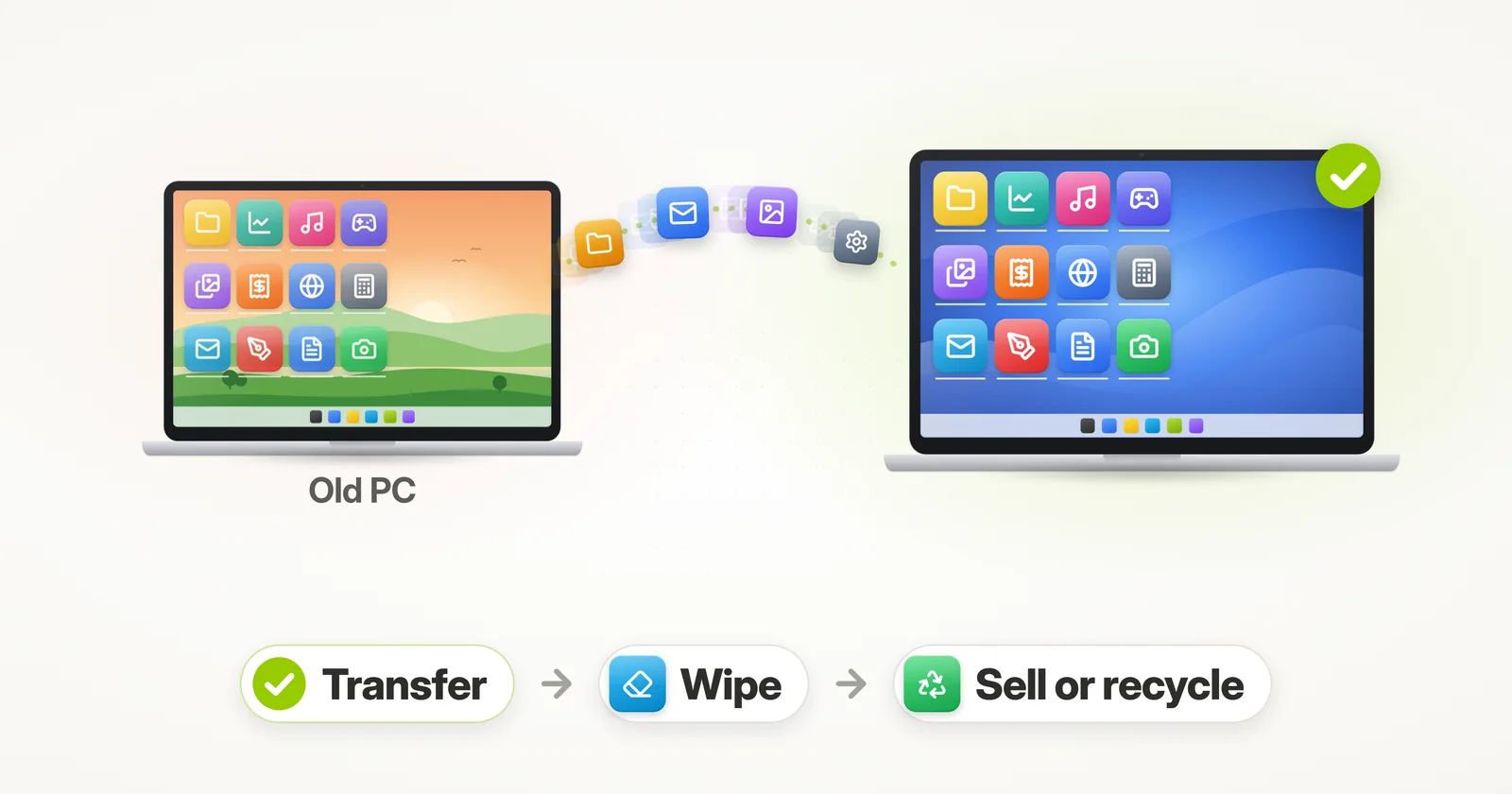
Got a new computer, and the old one is still sitting on the desk? Before you sell it, trade it in, give it away or recycle it, there are a few things to do first – in the right order, so your programs, files, photos, emails and passwords don’t go out the door with it.
The first is getting everything off the old computer. There are two ways to do that – manually, and automatically – and we will cover both in this guide, along with how to wipe the old computer and where it can go.
What should I do with my old computer?
Short answer: get everything off it first, then wipe it, then sell, trade in, donate or recycle it. Zinstall WinWin transfers your programs, settings and files to the new computer automatically and leaves the old one exactly as it was – so nothing is lost if you need something from it later.
What should I do before getting rid of an old computer?
Get your things off it, check that the new computer has everything, then remove your personal information and your accounts. Microsoft’s own checklist has the same order: back up, reset the PC, then remove it from your Microsoft account.1
- Transfer everything to the new computer – programs, files, emails, bookmarks and passwords (see below). If the new computer isn’t set up yet, start with how to set up a new laptop or computer.
- Check the new computer before you let the old one go: open your programs, your email and your documents.
- Sign out of what is tied to the old computer. Sign out of Microsoft 365 on that PC from the Installs page of your Microsoft account,2 and if you bought music or films from Apple, choose Deauthorize Machine in the Apple Music or Apple TV app.3
- Wipe it with Windows’ own reset, choosing Remove everything and Clean data (see below).
- Remove it from your Microsoft account at account.microsoft.com/devices: find the PC there and choose Remove.1
- Take out what is yours – discs, memory cards, USB sticks – and keep the charger with the computer if it is going to a new owner.
How do I get everything off my old computer?
Transfer it to your new computer, so the new one is ready to use – not just your files, but your programs, settings and accounts too. By hand, that means copying your files and reinstalling every program; automatically, Zinstall WinWin does it all in one go.
To do it by hand, you will need to:
- Copy your files – Desktop, Documents, Pictures, Music, Videos and anything you keep elsewhere – to an external drive, and from there onto the new computer. Or let Windows Backup put your folders in OneDrive, and sign in with the same Microsoft account on the new computer.4
- Reinstall your programs on the new computer, one by one. Windows Backup doesn’t do that for you: for apps that aren’t in the Microsoft Store, it sends you to the web to download the installer.4
- Set it all up again – your email accounts, your browser’s bookmarks and saved passwords, and each program’s settings.
Doable? Yes. Easy? Not exactly – and whatever you miss is gone for good once the old computer is wiped. Instead, you can just let a dedicated transfer product do this whole thing for you. Read on for instructions on that.
Automatic transfer from your old computer to the new one
The easiest way to get everything off your old computer is to use a dedicated transfer tool – Zinstall WinWin.
It can transfer all of your programs, along with your profiles, accounts, settings, personalization, and all files from your old computer to the new one – automatically.
And it does not just copy files or profiles; apps get installed automatically on the new computer, and configured just like on the old one. You don’t need to install them yourself and you don’t need to configure them yourself.
It requires no technical knowledge to use, too. If you know how to download a file from the internet, you know how to use it – and can save a lot of time and avoid a lot of frustration when you move everything off your old computer.
How to transfer everything off your old computer before you get rid of it
- Run Zinstall WinWin on your current computer (the one you are transferring from).
Note: You can get Zinstall WinWin here. - Run Zinstall WinWin on the new computer
- You don’t need to do any configurations for the computers to connect – it’s automatic
- If the computers are already connect to same router, same Internet connection, or same wireless connection, you don’t need anything else
- If the computers are not connected at all, connect them with a network / Ethernet cable
- If you’d like to select which applications and files you want to transfer, press the Advanced menu. If you just want to transfer everything, you don’t need to go to the Advanced menu.
- Press “Go” on the new Windows 11 computer to start the transfer
That’s it!
Once the transfer is done, your new computer will have your programs, files, settings, emails and accounts – just like the old one.
And the old computer is not changed at all: Zinstall only copies from it, so everything is still there until you decide to wipe it.
The new computer will feel just like home.
How do I wipe my old computer before I sell or recycle it?
Use Windows’ own reset, with Remove everything and Clean data: it reinstalls Windows and removes your files, apps and settings, and Microsoft says to turn on Clean data if you are planning to donate, recycle or sell the PC.5
- Open Settings, go to System > Recovery, and select Reset PC.
- Choose Remove everything, and turn on Clean data. If the computer has more than one drive, choose to remove the files from all of them.6
- Choose Cloud download or Local reinstall, and follow the instructions on the screen.
Cleaning the drive takes longer than a plain reset – Microsoft’s instructions for its Surface computers say an hour or two7 – so keep the computer plugged in. The screen can go black for a long while; don’t restart the computer yourself, or the reset can fail.5
Want to reinstall Windows on a computer you are keeping, without losing your programs? That is a different job: see how to reinstall Windows 11 without losing your programs and files.
Is a factory reset enough to protect my data?
Yes, for selling, donating or recycling a home computer – as long as you turn on Clean data. Microsoft recommends it for exactly that, because it makes it harder for other people to recover the files you removed. It also says this is consumer-grade erasure, not a wipe that meets government and industry standards.5
If the drive is encrypted, have your BitLocker recovery key at hand before you start. Windows 11 turns on device encryption automatically when you sign in with a Microsoft account,8 and Microsoft says to have the key ready before a reset.5
Should I take out the hard drive instead?
Only if the computer is going to recycling and you can’t wipe it – because it no longer turns on, for example. A trade-in needs the drive inside: Microsoft’s trade-in program, for one, requires a laptop to come with its hard drive.9
And don’t count on a hammer. CISA, the US cybersecurity agency, warns that parts of a drive you try to destroy yourself may survive, and suggests a professional recycling or destruction service that lets you check the drive was destroyed.10
Where can I sell my old laptop?
If it still works well, trade it in, or sell it yourself once it is wiped. Best Buy takes laptops in exchange for a Best Buy gift card, in a store or by mail, as long as the laptop turns on and works normally.11 Microsoft’s trade-in program, run by Teladvance, takes used laptops by mail for cash back.9
Both want the laptop reset first – Best Buy asks for it fully reset to factory settings and removed from your accounts.11 Apple’s trade-in gives credit for Macs, not for Windows laptops,12 and Dell ended its trade-in program in 2026.13
Does Best Buy take old laptops for recycling?
Yes – Best Buy recycles laptops for free at most of its stores, no matter where you bought them, up to five laptops per household per day. Desktops, all-in-one computers and hard drives are taken too.14
The program is for households, not businesses, and the data is up to you: Best Buy suggests wiping the computer before you bring it in.14
How do I recycle my old computer?
Wipe it, then take it to a store or a maker’s program that recycles computers for free – not to the trash: most computers contain hazardous materials that don’t belong in a landfill, the FTC says.15
- In a store: Best Buy14 and Staples16 recycle computers and laptops for free in their stores.
- At Goodwill: Dell Reconnect takes computers of any brand, in any condition, at participating Goodwill locations.17
- By mail: Dell Mail Back recycles any brand for free, with a prepaid shipping label.18 Lenovo’s free mail-back takes Lenovo-branded products,19 and Microsoft’s takes Microsoft-branded ones.20
- A local recycler: the EPA recommends certified recyclers – look for R2 or e-Stewards certification; both standards require the recycler to destroy all data.21
Don’t count on these programs to wipe the drive for you – Dell, for one, says the data on a computer you send in is your responsibility.18 Reset it with Clean data before it goes.
Should I donate an old laptop or destroy it?
Donate it if it still works – wiped first – and keep destruction for a drive you can’t wipe. A working computer can still be useful to someone, and a reset with Clean data makes your files hard to recover.5
World Computer Exchange takes working laptops and desktops less than seven years old from anyone, laptops by mail with a free shipping label, and erases every drive itself.22 Computers dropped off through Dell Reconnect may be refurbished and resold by Goodwill, but there you wipe the computer yourself.17 And if you want a drive destroyed, CISA suggests a professional destruction service that lets you check it was done.10
Do old laptops have any scrap value?
Their materials are worth recovering, which is why an old laptop belongs with a recycler, not in the trash: the EPA says electronics are made from valuable materials – metals, plastics and glass – that take energy to mine and make.23
As for money, a laptop that still works goes further as a trade-in or a donation than as scrap. And the battery needs care: the EPA says lithium-ion batteries don’t belong in household garbage or recycling bins.23
Should I keep my old computer?
Keep it at least until you have checked that everything works on the new one. The transfer leaves it exactly as it was, so for now it is your safety net.
After that, it is up to you. If you keep it, keep it somewhere safe – CISA calls a secure place the most effective way to protect the data on an old device.10 And if you would rather it was useful to someone, wipe it and pass it on.
What if my old computer doesn’t turn on?
You can still get your programs and files off it – from its hard drive. Zinstall Migration Kit Pro transfers them from the old drive to the new computer, even if the old computer no longer starts, as long as the drive itself can still be read.
Here is how to recover your programs and files from a broken computer. Once you have everything, the drive can be wiped or go to a recycler.
Ready to move everything to your new computer – before the old one goes?
Video tutorial – how to transfer programs and files from one computer to another
Sources
1. Microsoft Support: Before you recycle, sell, or gift your Xbox or Windows PC, updated December 2025
2. Microsoft Support: Deactivate an installation of Office, updated June 2026
3. Apple Support: Authorize or deauthorize your computer for Apple Account purchases, September 2026
4. Microsoft Support: Back up and restore with Windows Backup, updated February 2026
5. Microsoft Support: Reset your PC, updated March 2026
6. Microsoft Learn: How push-button reset features work, updated March 2022
7. Microsoft Support: Reset or recover your Surface, updated January 2026
8. Microsoft Support: Device encryption in Windows, updated March 2026
9. Microsoft Store: Microsoft Trade-In Program, checked November 2026
10. CISA: Protecting Data on Old Devices You Don’t Use Anymore, checked November 2026
11. Best Buy: Trade-In Program FAQs, effective October 2026
12. Apple: Apple Trade In, checked November 2026
13. Dell: Dell Trade-In Program (ended in 2026; archived copy), October 2026
14. Best Buy: Electronics and Appliances Recycling at Best Buy, checked November 2026
15. FTC Consumer Advice: How To Remove Your Personal Information Before You Get Rid of Your Computer, July 2022
16. Staples: Recycling Services, checked November 2026
17. Dell: Dell Reconnect, checked November 2026
18. Dell: Dell Mail Back, checked November 2026
19. Lenovo: Product Recycling Programs – United States, checked November 2026
20. Microsoft: End-of-life management and recycling, checked November 2026
21. US EPA: Certified Electronics Recyclers, updated July 2026
22. World Computer Exchange: How to donate computers, updated July 2026
23. US EPA: Electronics Donation and Recycling, updated December 2025
guaranteeAny PC, any Windows Buy now