
How to Set Up a New Laptop or Computer with Windows 11
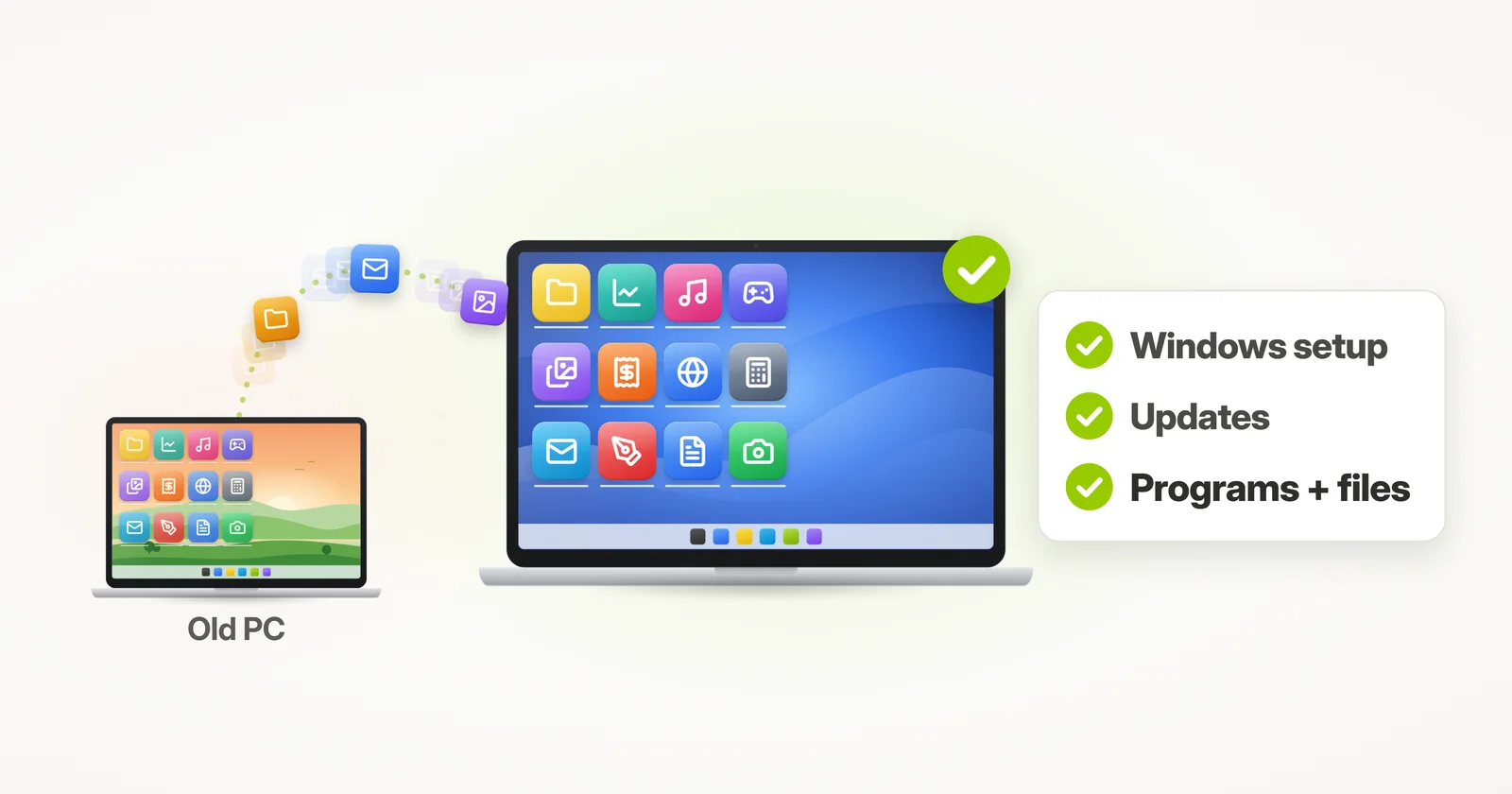
Just got a new laptop or computer with Windows 11? This tutorial will show you how to set it up, in the right order – from the first screens and the Microsoft account, through the updates, to the part that usually takes longest: getting your programs, files, settings, emails and accounts from the old computer onto it.
There are two ways to do that last part – manually, by reinstalling and copying everything yourself, and automatically. We will cover both in this guide.
How do I set up a new laptop with Windows 11?
Short answer: go through Windows setup, install the updates, then bring everything over from your old computer. Zinstall WinWin transfers your programs, settings and files from the old computer to the new one in one go, with both computers on and connected. Or, if you’d rather not do it yourself, our technicians can set up the new computer for you, remotely.
What should I do first when I set up a new computer?
Start with Windows itself: go through the setup screens, then install the updates. Leave your programs and files for after that – once the new computer is up to date, they can all come over from the old one in one go.
Here is the whole new computer setup checklist, in order:
- Go through Windows setup. Plug the computer in, pick your region and keyboard, connect to your Wi-Fi and sign in. Windows 11 asks for a Microsoft account at this point (more on that below).
- Install the updates. Open Settings, go to Windows Update, select Check for updates, then Download & install, and restart when it asks.1
- Transfer your programs, settings and files from the old computer. By hand, this is the step that takes longest; with Zinstall it runs automatically (see below).
- Check that everything works – your programs, email, browser and documents – before you do anything with the old computer.
- Install your printer and your antivirus. Drivers and antivirus software are not transferred, so set those up fresh.
- Remove the preinstalled extras you don’t want, and set up a backup, so the new computer is protected from day one.
- Then deal with the old computer – wipe it, then sell, donate or recycle it.
Do I need a Microsoft account to set up Windows 11?
Yes, on Windows 11 Home and on Windows 11 Pro set up for personal use: Microsoft says both need an internet connection and a Microsoft account to finish setting up a new computer.2 If you don’t have an account, setup lets you create one.
The shortcuts people used to skip this step are going away. Microsoft announced in 2025 that it is removing them from Windows setup,3 and tech sites report that the well-known ones no longer work on current versions of Windows 11.
What you can do is finish setup with a Microsoft account and switch to a local account afterwards: in Settings, open Accounts > Your info and select Sign in with a local account instead.4 Zinstall works either way – it doesn’t need a Microsoft account at all.
Can I set up Windows 11 without an internet connection?
Not on Windows 11 Home, or on Pro set up for personal use: setup needs an internet connection to finish, along with the Microsoft account.2 Updates need the internet too, on every edition of Windows 11.
The transfer from your old computer is different – it runs between the two computers, over your home network or one network cable, not over the internet. Here is what you need to connect the two computers.
Do I need to use the same Microsoft account as on my old computer?
No. Sign in to the new computer with whatever account you want to use from now on – the same Microsoft account, a different one, or a local account. When you run the transfer, Zinstall brings your old profile into the account you are signed in with on the new computer.
So on the old computer, sign in as you always do; on the new one, sign in with your new account, and run Zinstall on both. Your files, settings and programs end up in that account.
How do I keep my files off OneDrive when Windows setup pushes its backup?
Skip the OneDrive backup when setup offers it. If it is already on, turn it off afterwards and choose to keep the files on your PC – then your Desktop, Documents and Pictures stay on the computer, not in the cloud.
To turn it off, open OneDrive’s settings from its cloud icon, go to Sync and backup, select Manage backup and switch off each folder. Windows then asks where the files should stay: pick Keep the files only on my PC.5 Watch that choice – the other option removes them from your computer and leaves them only in OneDrive.
Best do this before the transfer: anything that lands in a folder OneDrive backs up gets uploaded. And if you don’t want OneDrive at all, you can unlink it in its settings (Account > Unlink this PC), or uninstall it from Settings > Apps > Installed apps. Microsoft says you don’t lose any files either way.6
Do I have to finish setting up the new computer before the transfer?
Yes – the basics: go through the first-start screens until you reach the Windows desktop, so you can run Zinstall there. There is no need to install your programs on the new computer first; the transfer brings them over.
Anything already on the new computer is safe, too: Zinstall adds what is missing, and never erases what is there.
How do I set up a new computer from my old one?
By bringing everything over from the old computer – your files, programs, settings and accounts. You can do it by hand, with Windows’ own tools and each program’s installer, or automatically, with Zinstall WinWin, which moves it all in one go.
Windows 11 no longer has a built-in PC-to-PC transfer: Microsoft removed it in a September 2026 update and points to Windows Backup instead.7 To do it by hand, you will need to:
- Bring your files over – copy them to an external drive and from there onto the new computer, or let Windows Backup keep your Desktop, Documents and Pictures in OneDrive and sign in with the same account on the new computer.8
- Reinstall every program, one by one, from its installer or its maker’s website. Windows Backup brings back only their pins: Store apps reinstall when you select them, and for the rest, Windows sends you to the web to download the installer.8
- Set each program up again – sign in, re-create your email accounts, re-enter your settings and preferences.
- Copy what is left – bookmarks, saved passwords, data that programs keep outside your user folders – and check nothing was missed.
Doable? Yes. Easy? Not exactly. It can take days, and it is how things get forgotten – the program you use once a year, the folder that wasn’t in Documents. Instead, you can just let a dedicated transfer product do this whole thing for you. Read on for instructions on that.
Automatic transfer of programs and files to your new computer
The easiest way to get everything from your old computer onto the new one is to use a dedicated transfer tool – Zinstall WinWin.
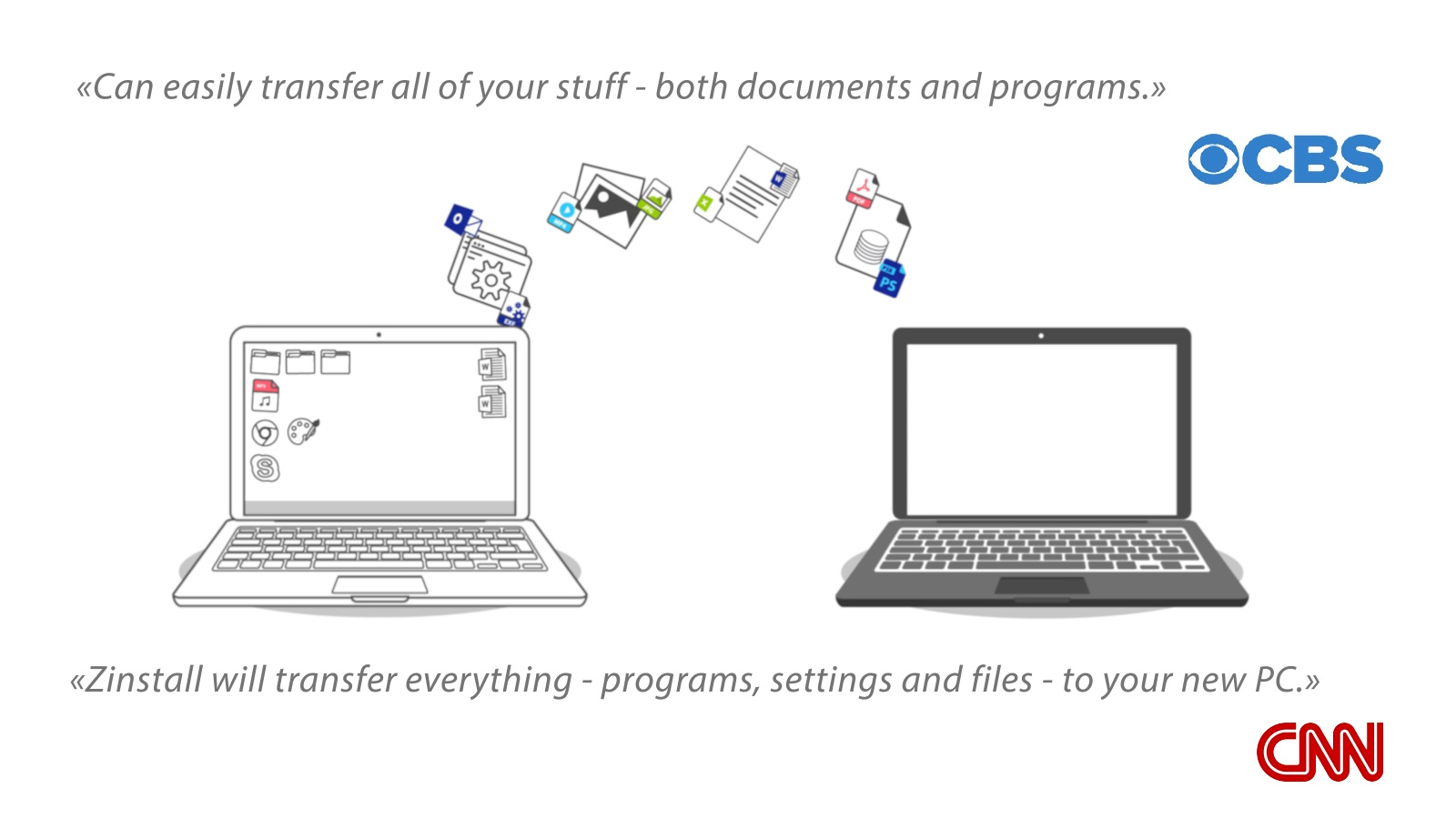
It can transfer all of your programs, along with your profiles, accounts, settings, personalization, and all files from your old computer – automatically.
And it does not just copy files or profiles; apps get installed automatically on the new computer, and configured just like on the old one. You don’t need to install them yourself and you don’t need to configure them yourself.
It requires no technical knowledge to use, too. If you know how to download a file from the internet, you know how to use it – and can save a lot of time and avoid a lot of frustration when you set up a new laptop or computer.
How to set up a new computer with everything from your old one
- Run Zinstall WinWin on your current computer (the one you are transferring from).
Note: You can get Zinstall WinWin here. - Run Zinstall WinWin on the new computer
- You don’t need to do any configurations for the computers to connect – it’s automatic
- If the computers are already connect to same router, same Internet connection, or same wireless connection, you don’t need anything else
- If the computers are not connected at all, connect them with a network / Ethernet cable
- If you’d like to select which applications and files you want to transfer, press the Advanced menu. If you just want to transfer everything, you don’t need to go to the Advanced menu.
- Press “Go” on the new Windows 11 computer to start the transfer
That’s it!
Once the transfer is done, your new computer will be all set, with your programs, files, settings, emails and accounts – just like on the old computer.
And the old computer is not changed at all, so anything you need is still there.
The new computer will feel just like home.
Can someone set up my new laptop and transfer everything for me?
Yes – our technicians can do the whole thing for you, remotely. They connect to your new computer over the internet, at a time you pick, set it up and bring over your programs, profiles and files from the old one.
There is nothing to unplug and nowhere to drive. See our computer setup service for how it works.
How long does it take to set up a new laptop?
Windows setup itself is the short part; the updates, and your programs and files, take longer. Microsoft says an update that installs during setup can take 30 minutes or more on its own.9
The transfer from the old computer usually takes several hours, depending on how much you have. You don’t need to watch it – once you press Go, it runs automatically, so you can start it in the evening and let it run overnight.
Should I remove the apps that came preinstalled?
Only the ones you don’t want – there is no need to strip the new computer bare. In Settings, open Apps > Installed apps, select the More button (…) next to an app and choose Uninstall.10
Some apps are part of Windows and can’t be removed. And if you are not sure what an app does, leave it until you know.
What about a new HP, Dell or Lenovo laptop?
Setting one up works the same way – Windows setup, the updates, then the transfer – and Zinstall works the same on every brand. The makers’ own tools don’t move your programs: HP says it doesn’t offer tools for transferring installed applications,11 and Dell says installed applications are not transferred by Dell Migrate and have to be installed again on the new PC.12
More on each: transfer to a new HP, transfer to a new Dell, and transfer to a new Lenovo.
Will my printer and antivirus come over to the new computer?
No – install those fresh on the new computer. Zinstall transfers your programs, settings and files, but not system drivers or antivirus software, which need to match the new computer.
What do I do with my old computer afterwards?
Keep it until you have checked that everything works on the new one – the transfer doesn’t change the old computer, so anything you need is still there. Then wipe it, and sell, trade in, donate or recycle it.
Here is what to do with an old computer or laptop, in the right order.
Ready to set up your new computer – with all your programs and files?
Video tutorial – how to transfer programs and files from one computer to another
Sources
1. Microsoft Support: Install Windows Updates, updated July 2026
2. Microsoft: Windows 11 Specifications (Internet connection and Microsoft account), checked November 2026
3. Windows Insider Blog: Announcing Windows 11 Insider Preview Build 26220.6772 (Dev Channel), October 2025
4. Microsoft Support: Change from a local account to a Microsoft account in Windows, updated August 2026
5. Microsoft Support: Back up your folders with OneDrive, updated March 2026
6. Microsoft Support: Turn off, disable, or uninstall OneDrive, updated December 2025
7. Microsoft Support: September 22, 2026 – KB5124010 (OS Builds 26300.9550, 26200.9550 and 26100.9550) Preview, September 2026
8. Microsoft Support: Back up and restore with Windows Backup, updated February 2026
9. Microsoft Learn: Windows Updates during OOBE, updated March 2026
10. Microsoft Support: Uninstall or remove apps and programs in Windows, updated June 2026
11. HP Tech Takes: HP Migration Tools: Transfer Your Apps and Data Without Hassle, December 2025
12. Dell: Dell Migrate, checked November 2026
guaranteeAny PC, any Windows Buy now